
What FileSure Actually Looks Like
No mockups. These are real screenshots of the FileSure console in action.
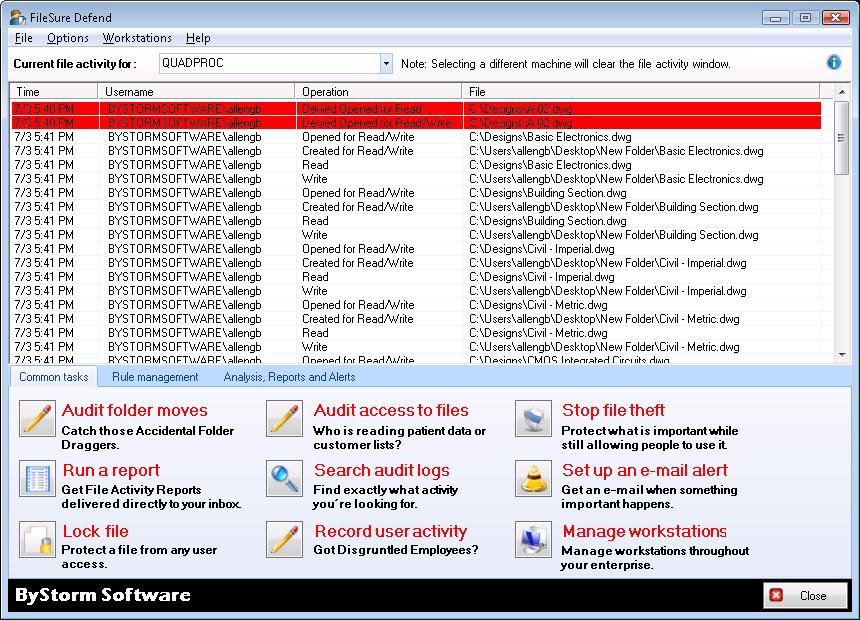
Real-Time File Monitor
The FileSure console showing live file and folder activity as it happens. This is the main screen — you can see every operation across your protected machines in real time.
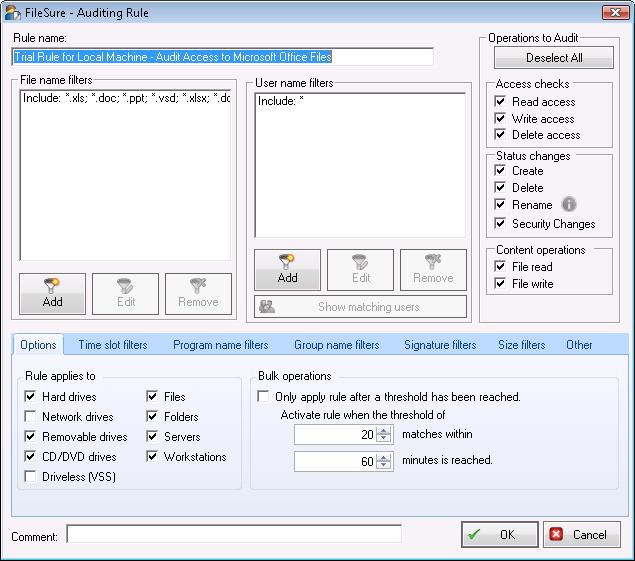
Defining an Audit Rule
The rule creation interface. This example shows setting up a single rule to record all access to Microsoft Office files.
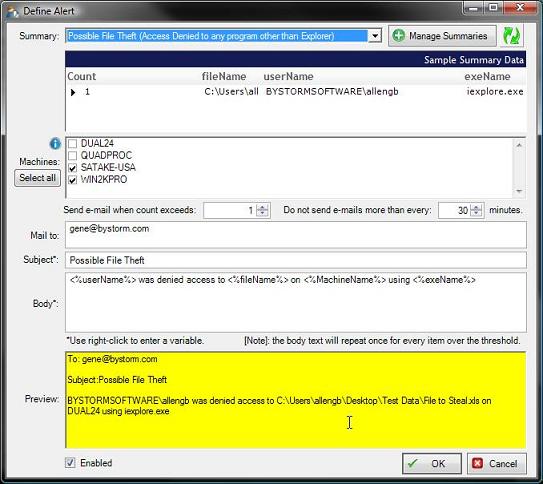
Setting Up a File Theft Alert
Email alerts are configured here. Setting up an alert to fire when an important file is accessed unexpectedly.
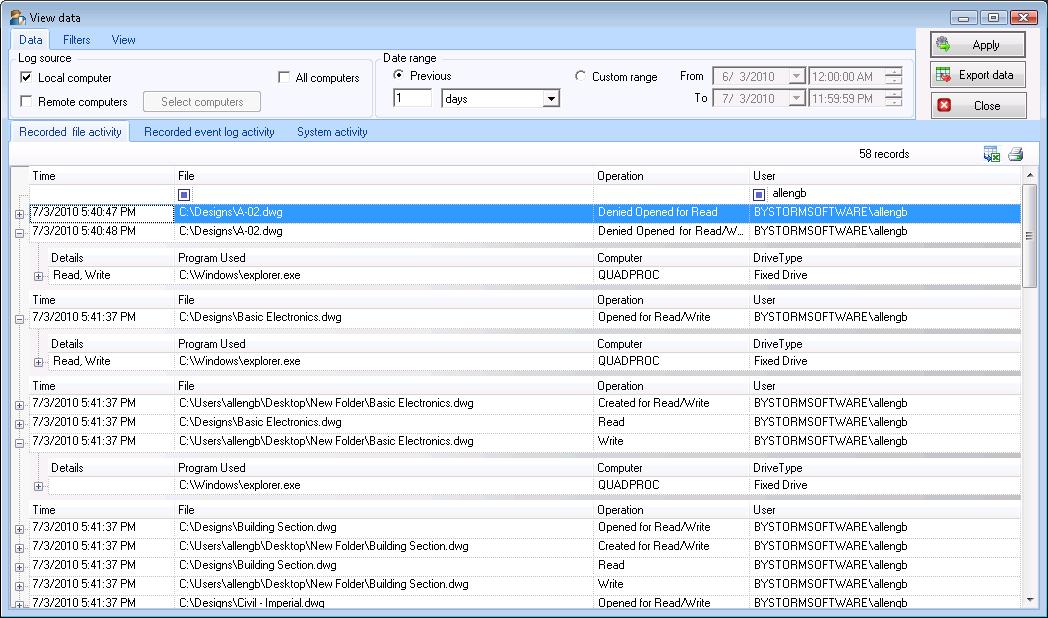
Viewing Audit Log Data
The FileSure "View Data" screen — the forensic console. Filter by user, file type, operation, machine, or time range.
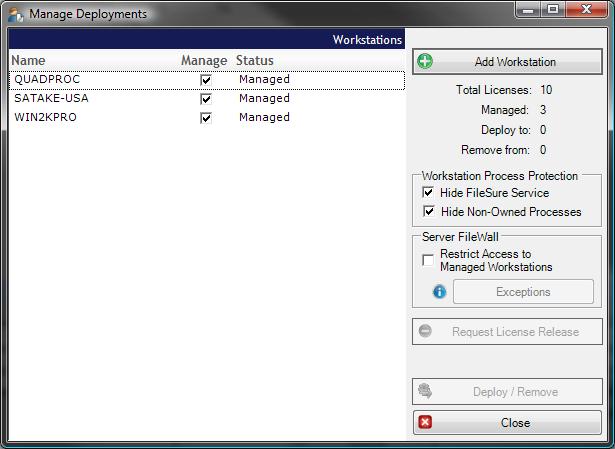
Managing Deployments
Workstation management from the central console. How FileSure extends protection to individual workstations without touching each machine.
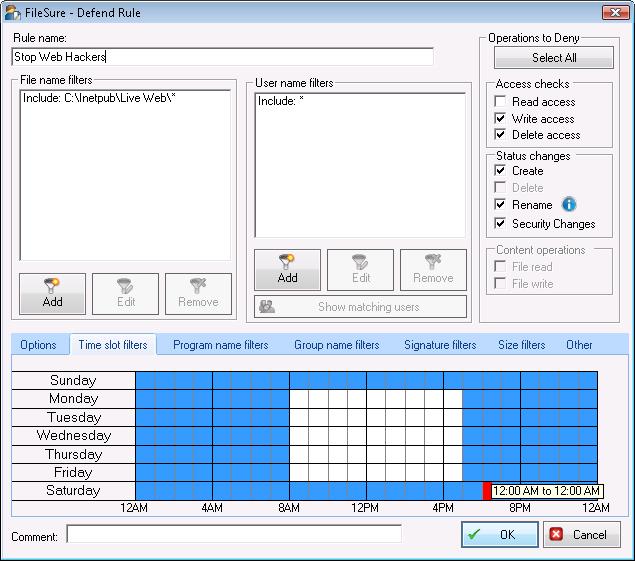
Time-Based Rules
FileSure rules can be limited to specific hours. A rule that blocks web file modifications outside of business hours.
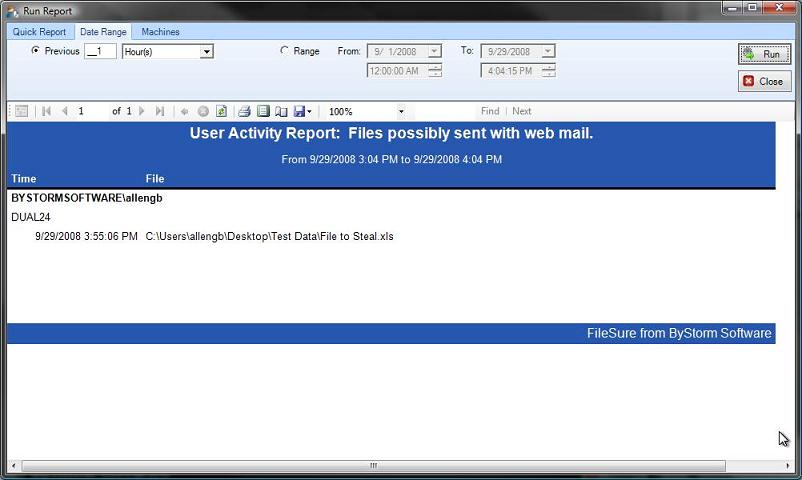
Sample Report
An example of FileSure's reporting output. Reports show exactly what was recorded, organized for easy review.
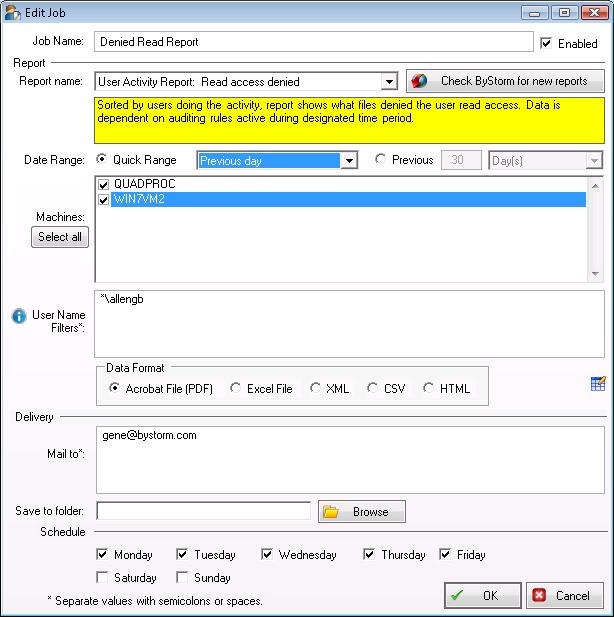
Automatic Report Scheduling
Reports can be scheduled and delivered by email automatically. Set it once, get it in your inbox on whatever schedule works for you.
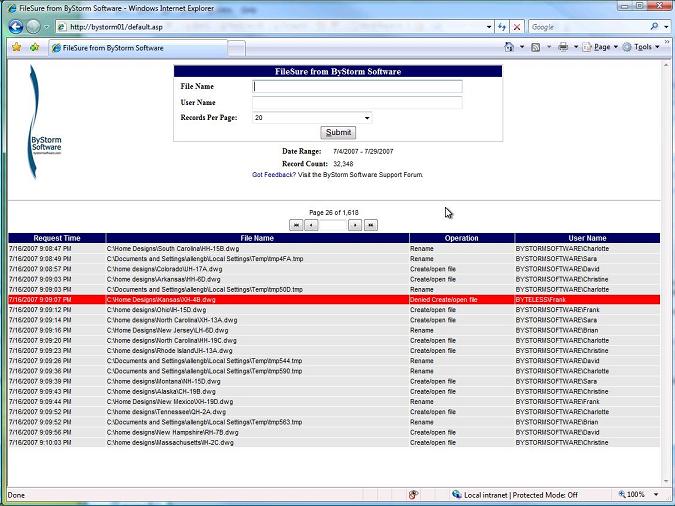
Web Console
For users who need to check file activity quickly without going through IT, the FileSure Web Console provides a simple search interface.
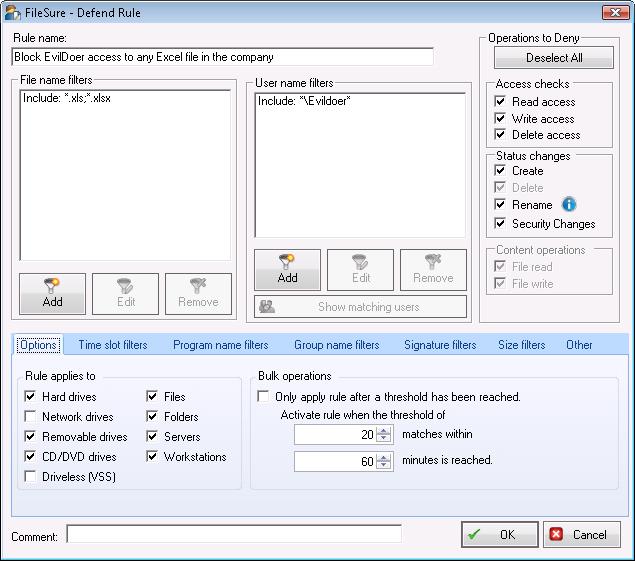
Blocking Unauthorized Access
FileSure Defend blocking a user from accessing protected files. A simple deny rule protecting Excel files from a specific user.
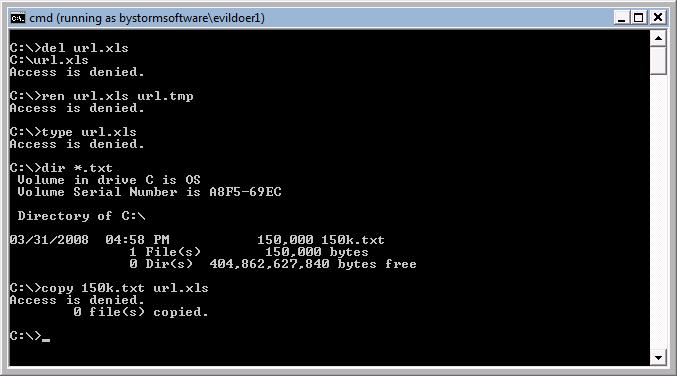
Blocks in Action
What it looks like from FileSure's perspective when a deny rule fires. Every blocked attempt is logged — user, file, program, timestamp.
Want to see it running in your environment?
Start your free 21-day trial today. No credit card required.